Phil,
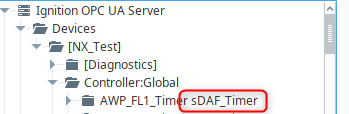
How does this driver treat Alias tags? They seem to be missing from the configuration when I import my L5X. (how do other drivers treat them - for that matter?)
Phil,
How does this driver treat Alias tags? They seem to be missing from the configuration when I import my L5X. (how do other drivers treat them - for that matter?)
My host driver discards them on import. I theoretically could support them there, but haven't taken the time to implement that.
My client driver treats them like independent tags because the processor browse protocol has some ambiguity about them. (Same as IA's driver.)
You should never target alias tags from Ignition, as they are totally unoptimizable. Like, will crush your connection performance. Which makes me want to not implement this in the Host Device type.
Automation Professionals is pleased to release a new BETA of this driver, with some bug fixes from the last beta, plus a bug fix for Logix "DT" aka "UTIME" data type support.
For Ignition v8.1.7+: v2.1.20.251471538
More bugfixes. Still BETA.
For Ignition v8.1.7+: v2.1.20.251532105
More bugfixes last week. Still BETA, but feeling pretty good about this one:
For Ignition v8.1.8+: v2.1.20.252681756
(Will be renumbered to v2.2.0 upon release--I've been cherry-picking back and forth with the v8.3 branch and these are very close to functionally identical.)
@pturmel in another topic about sticking momentary buttons you mentioned your improved Logix Driver. Is this that driver? Will it help make momentary buttons more reliable?
I agree, that they should be avoided but I am not the one making the call to keep the buttons in place. We use our momentary buttons to jog a conveyor/s if needed.
Appreciate a response, thank you.
This driver module includes a high-reliability momentary button for Vision, which only works with the module's Class1 I/O buffers (Scanner or Adapter modes). It does not work with the Generic EtherNet/IP Client driver type, nor with any other driver.
We are trying to connect to cygnus commkit using EthernetIP Class 1 Communications module in Ignition and having a hard time to make it work. Here is the commkit instructions manual. https://www.maxcessintl.com/wp-content/uploads/2022/05/MAGPOWR-COMMKIT-Fieldbus-Interface-Cards-Instruction-Manual.pdf
Before we buy the Ethernet Module, we need to make sure it works. Can you please advise on this ?
Please provide a link to the nested HMS AnyBus model. The manual say 4173, but that doesn't show up on the HMS website. Or provide the PDF manual and EIP EDS file (not the DNet EDS).
Generally, AnyBus EtherNet/IP products work exactly as expected, but provide zero data conversion or byte ordering.
This Maxcess product is big endian, while EIP is little endian. This will be a challenge.
The Maxcess manual suggests that you should be able to use GetAttributeSingle messages, but provides no details of class, instance, and attribute numbers. This will be a challenge.
You haven't provided enough information to determine if scanner mode would work.
The poor quality of the documentation makes me hesitant to endorse this product with my driver.
Here is the commkit module that we have plugged in to the Cygnus Controller.
This is some of the information that I have received from Maxaccess who sold us the commkit unit. Also I did some digging and saw how I can make it work with Ignition and that's how I landed up with your module as its ethernet based. It was talking about EDS which I found from HMS website but that's just a generic version I believe and I tried that and it does not work. I got a response from HMS who asked us to reach out to Maxaccess to send the the correct EDS. See the copy of that email below.
Sorry I am sending you a lot of info here but that's the only way to figure out how we can make it work. Our end goal is to connect the commkit device to Ignition so we can record the tension data.
Kevin Annis (HMS-Support)
Nov 13, 2025, 17:37 GMT+1
Hello Aniket,
You will need to reach out to Cygnus for the EDS file that they developed for their Commkit. The EDS we provide for the AB4173 is a template EDS file for developers to configure alongside the development of the embedded unit for their machines. Cygnus will have correct EDS file that has all the parameter and connection information need for your Ethernet/IP Scanner.
I do apologize for the inconvenience.
-Kevin
Email from Maxaccess
Hi Vipul,
Good question — you do not need to purchase a separate external Anybus adapter.
Your Commkit module (the small circuit card already installed inside the Cygnus) is itself an HMS Anybus-S Ethernet/IP interface. That’s the device that allows the Cygnus to communicate with your PLC or data collection system over Ethernet/IP.
Here’s how it works:
How the Commkit is structured
So the fact that you can reach the web page means your Anybus interface is active and ready to be configured.
NEXT STEPS
To get communication with your PLC or data system:
Summary
What Data You Can Read from the Cygnus
The Cygnus communicates all of its internal setup and operating parameters over Ethernet/IP using the built-in Anybus-S Commkit card.
Each parameter in the controller (like Tension, Diameter, Mode, Setpoint, etc.) is assigned a Parameter ID. Through the network, you can read or write any of these parameters.
Typical parameters you can read include:
All these values can be queried using the Ethernet/IP connection without needing to be at the front panel.
How the Data Exchange Works
The Commkit uses a 16-byte Input / 16-byte Output data image, organized into 8 words of 2 bytes each:
Word
|
Field
|
Description
|
- | - | - |
0
|
Message ID
|
Command counter (changes each new message)
|
1
|
Parameter ID
|
The Cygnus parameter number to read/write
|
2
|
Read/Write Control
|
0 = Read, 1 = Write
|
3
|
Data (UINT)
|
16-bit unsigned value
|
4–5
|
Data (INT)
|
32-bit signed value
|
6–7
|
Data (FLOAT)
|
32-bit IEEE floating-point value
Commkit setup
|
When you send a read command, the Cygnus returns the requested parameter’s value in the correct data field (UINT/INT/FLOAT).
When you send a write command, the Cygnus acknowledges success by returning Parameter ID = 0xFFFF
Example – Reading Actual Tension
850A299 Commkit-EN Manual
If there’s an issue, the Parameter ID field will instead contain an error code like 0xD001–0xD023, which you can reference in the manual’s error list.
In Summary
Once connected via Ethernet/IP:
This makes the Commkit a full remote interface for automation, data collection, or SCADA integration — no extra Anybus hardware or local HMI is required.
Tirrell Pullen
Technical Support Representative
Maxcess - Oklahoma City
Main: 405-755-1600
Office: 405-752-7885
Fax: 405-724-5085
(In the future, please send such data dumps to my sales or support emails.)
Ok. The EtherNet/IP part is simple. In my Host Device driver type, create two array tags of type INT[8] for input and output buffers. (Follow the user manual instructions for the various settings of the devices. The Local Address setting will likely need to be in the same subnet as the tension device.)
Create a scanner module within the driver with route path port 2 your.maxcess.ip.address and application path assy 1 cxpt 150 cxpt 100.
Put your tag names into the input an output settings, and choose 50000 microseconds for the RPIs.
You will have to write gateway timer scripts to cycle message IDs and parameter numbers to multiplex the data through this interface. That is beyond the scope of my pre-sales support.
I’m pretty new to Ignition and Omron, I’m currently testing some different communication protocols as we want to try some alternatives to Kepware possibly, found this module and just been testing a bit today, works pretty good as far as I can tell.
I just have some issue with tags from structs im the Omron PLC (NJ and NX PLS’s) imported into Ignition, they get a space and struct name added to the name, this messes up with our current templates which just has the tagname and undertags, any possibility to not add the struct name?
Only when dragging and dropping. That struct name serves two purposes:
It cues what data type to expect from that folder, cueing the use of the corresponding auto-generated Ignition UDT under _types_/ENIP/device/. (Get the JSON for those from the device's configuration page.)
It discourages users from dragging and dropping whole folders from the PLC, which is a newbie mistake that usually triggers horrible driver performance. Limit drag and drop to just atomic values.
The struct name is not part of the OPC Item Path.
I will not be changing this deliberate driver behavior.
When you want a whole folder from OPC, right click that node and copy the path. Then, in the Tag browser, create a new UDT instance of the displayed type, and set its opc_something parameter to that copied item path.
If you don't like anything about the auto-generated UDTs, you are welcome to copy into a new folder in your tag provider and tweak to your heart's content.
Automation Professionals is pleased to announce a Release Candidate for Ignition v8.3, with updated documentation.
For Ignition v8.3: v2.2.0.253501828
Automation Professionals is pleased to announce the Production release of this driver module for Ignition v8.3. This release fixes two bugs in the release candidate above:
A broken redundancy synchronization implementation, with broken Protobuf encodings.
A reconnect bug when status shows "Disconnected Duplicate FwdOpen".
For Ignition v8.3: v2.2.1.260072007
Better bugfix for the duplicate FwdOpen reconnection bug. I have an L81 in my lab that doesn't appear to allow recycling connection triads as expected. 
For Ignition v8.3: v2.2.1.260091944
Thanks for helping with my previous issue, have worked it out, I had to update some of the UDT’s etc, but got it working well now.
I’m just wondering about the statistics in Ignition 8.3.3, I cannot find the “View details” in Connections-Devices-Connections like I can for the native Omron NJ driver for instance. I can see that others have posted pictures of those stats before in the thread, but that was probably for a previous version of Ignition, so maybe its changed? Thanks.
It changed, and I haven't altered my implementation (yet) to show graphic diagnostics in v8.3.
Automation Professionals is pleased to announce a Release Candidate for this module in v8.1. It includes backports of the latest v8.3 bug fixes and uses the Device model to facilitate future backports.
For Ignition v8.1.x: v2.1.20.260761438
Hi,
I’m planning to use Ignition together with your driver for a project with an Omron NX102-9020 PLC. I expect to work with 100K+ tags.
Could you please advise which tools I should use to test the performance of the driver and my infrastructure? I’d like to better understand what level of performance I can realistically expect.
I’m still getting familiar with the platform, so any recommendations or best practices would be greatly appreciated.
Thank you in advance for your time!