Unable to pass value in table viewcell

Hello,

I have a table with a viewcell in the last column (the goal is to have un buton for delete the line on the database).
I followed the instruction in the user manual (here).
I don't understand why but I'm unable to pass the value of the cell to the view. I can pass row, rowData, column, etc...

I can just use the rowData but I would like to understand the problem.
Has anyone else experienced this kind of problem?

The viewcell is currently just a label on whitch I binded the value of the "value" parameter


Do not define the view parameter in your child view, it makes it automatically.

All configuration seems right. Make sure the param is set to input like shown here.
image

Also, have you binded the component to the value param?

Is it possible to display the value being passed without defining the parameter in the child view and binding it to the component(in this case a label component) in the child view?

@David_Stone
I'm not sure to understand. If I don't declare the parameter in my view, the binding will not work. I get a Null reference.

@Cose_Peter1
The screenshot didn't show the arrow but all the parameters are set as input

I tried with the default value when I create a table and it works. But it doesn't work with my data, so may be it's the format that cause this issue. My data come from a script and I change the style dynamically. The rowData has the following format.

rowData = {
	"value": {
		"col1": "some value",
		"col2": "some value",
		"col3": "some value",
		"col4": "some value",
		"col5": "some value",
	},
	"style":{
		"backgroundColor": "some color",
	}
}

I can see that the the field in columns is defined as IdPrt2, but in your rowData it is col1-col5. The column name should be consistent with the data.

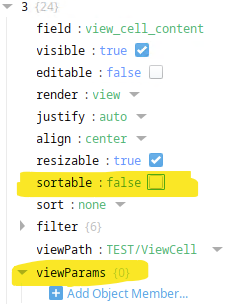
When the column names are setup correctly on the table, you will have this icon show up on the header of the column.
image

It was only for the example.
The column name are consistent. And everything is working if I use "rowData" parameter in the viewCell. It's just with "value" parameter that it doesn't work.

IIRC, the value parameter will not pass an object, only a scalar.

I think we’ll benefit from taking a look at your table.props.data object. How you structure your data depends on how the data will arrive to the subview.
Can you sanitize 1 or 2 rows of data and post that object here?
Also, what version of Ignition are you using?

I did some tests.

Here is the results between 2 differents format

My data is structured as follows (first table)

[
  {
    "value": {
      "id": 7593,
      "product_name": "productA",
      "qty": 393,
      "view_cell_content": "ahahah"
    },
    "style":{
      "backgroundColor": "#9eeaf9"
    }
  },
  {
    "value": {
      "id": 1234,
      "product_name": "productB",
      "qty": 150,
      "view_cell_content": "ohoho"
    },
    "style":{
      "backgroundColor": "#9eeaf9"
    }
  }
]

I did this because I wanted to color the line in 1 time.

If I modify the structure in this way (2nd table), it works.

[
  {
    "id": {
      "style": {
        "backgroundColor": "#9eeaf9"
      },
      "value": 7593
    },
    "product_name": {
      "style": {
        "backgroundColor": "#9eeaf9"
      },
      "value": "productA"
    },
    "qty": {
      "style": {
        "backgroundColor": "#9eeaf9"
      },
      "value": 393
    },
    "view_cell_content": {
      "style": {
        "backgroundColor": "#9eeaf9"
      },
      "value": "ahahah"
    }
  },
  {
    "id": {
      "style": {
        "backgroundColor": "#9eeaf9"
      },
      "value": 1234
    },
    "product_name": {
      "style": {
        "backgroundColor": "#9eeaf9"
      },
      "value": "productB"
    },
    "qty": {
      "style": {
        "backgroundColor": "#9eeaf9"
      },
      "value": 150
    },
    "view_cell_content": {
      "style": {
        "backgroundColor": "#9eeaf9"
      },
      "value": "ohoho"
    }
  }
]

So I think I have to use the second form, but it requires repeating the backgroundColor property for every element.

I’m using version 8.1.25. It may be different in newer versions (I haven’t tested).

The sort Icon is still not showing on the table header. I'm not sure if you named the column fields right. I might suggest you looking at this thread.

To elaborate on an earlier answer, you do not NEED to create the value, rowData, etc. properties as input parameters, they will be passed to the subview from the table automatically, whether you create them within your subview or not. However, it's convenient to build them anyway (at least those that you'll be referencing) so that you can have something to bind to (with intention) inside of the view. Also helps with any reverse-engineering that might be required down-the-road.

The sort icon is not showing because I unchecked the sortable option.

Also, I didn’t create the parameters in the viewParams object, but I think they’re mandatory in the view cell.
I tried deleting them and, as expected, the binding had a null reference.